Download COMPS INC. 4.20 Full Version
Download the latest version of COMPS INC for Windows

How Do I Install COMPS INC. desktop version?
You can follow these steps to install COMPS INC. on your Windows PC. Let's Begin!
1
Download COMPS
Download the latest COMPS INC installer.

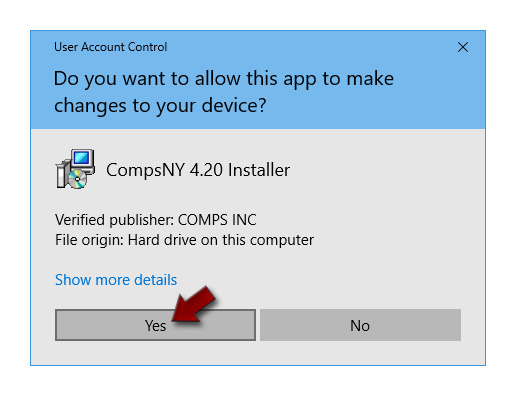
Double click the setup file to begin the installation. If you see a "User Account Control" prompt, click "Yes" to allow the installer to run.
2
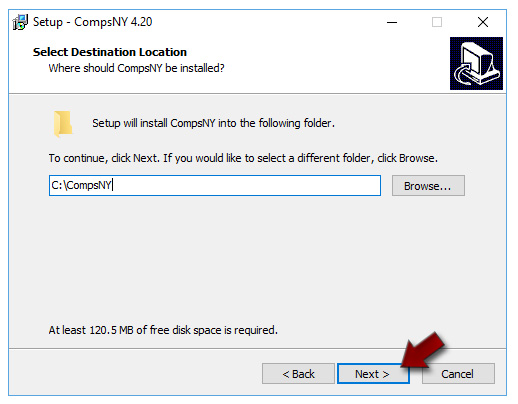
Choose your install path
Choose the path to install COMPS to. (the default is C:\CompsNY\)
3
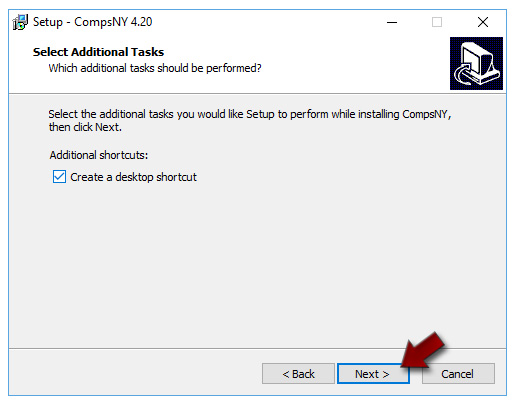
Would you like a shortcut?
Decide if you want to "Create a Desktop shortcut" and click "Next" to continue
4
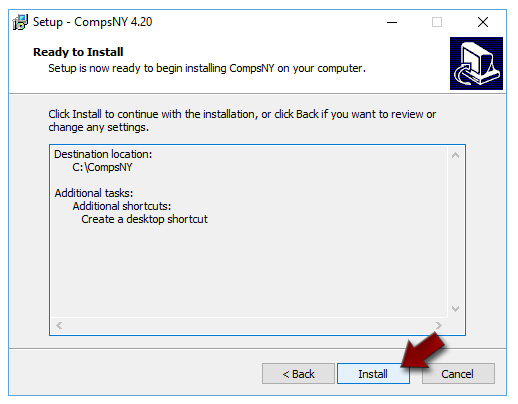
Ready to Install
Click "Install" to begin the installation.
5
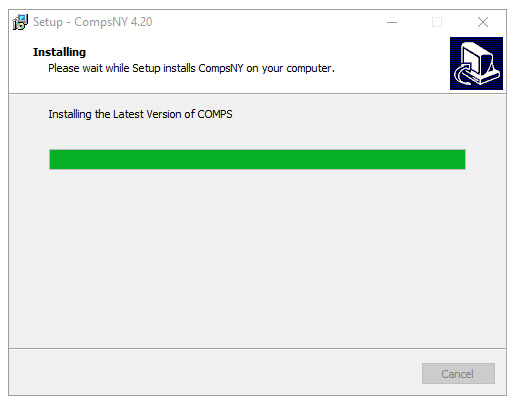
COMPS INC is installing
Let the installer run. This should only take a few moments.
6
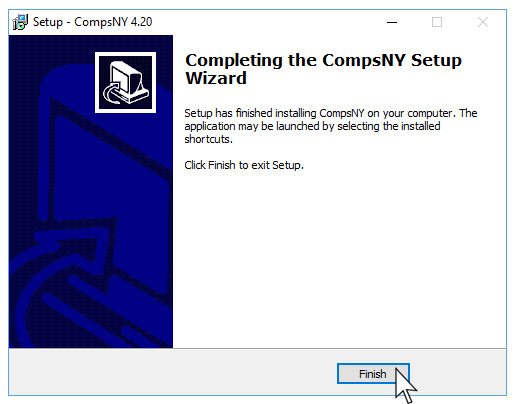
All Set! COMPS INC is now installed.
Click "Finish" to complete the setup.
How Do I Activate COMPS INC. desktop version?
Before you can use COMPS INC for Windows, your license needs to be activated.
1
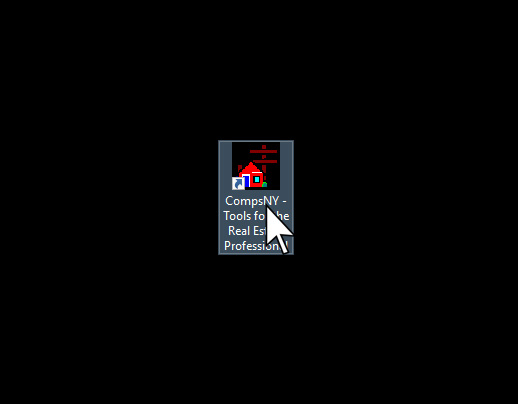
Open COMPS
Click the "CompsNY" shortcut to open the application.
2
Let's Activate COMPS!
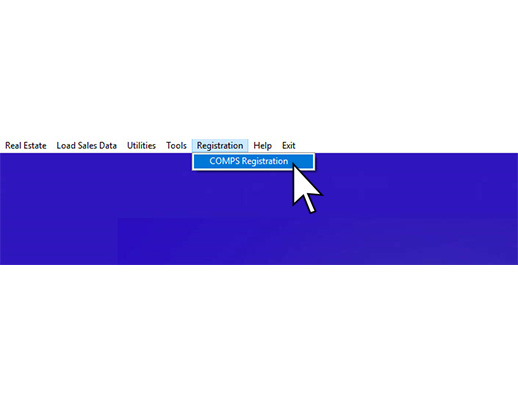
In the top menu, click "Registration". Next, click "COMPS Registration".
3
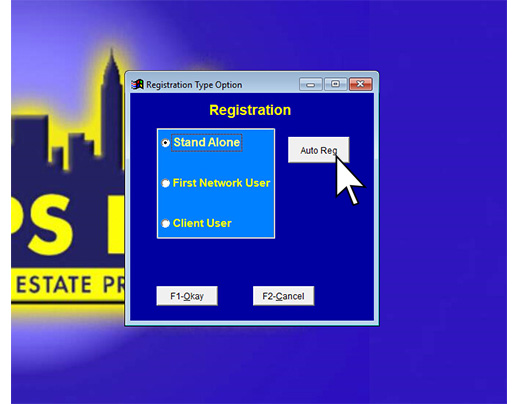
Use Auto Register
Click the "Auto Reg" button on the right side of the panel.
4
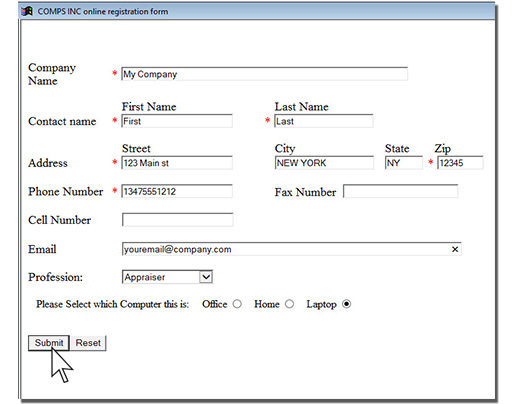
Enter your registration information.
Enter the same information you used to register with. Hit "Submit" once you are complete. If your account is already active, the software will activate automatically. You should see a confirmation prompt confirming your subscription status.
5
Give us a call if you have any issues!
Call us at (516) 676-0400 during business hours and we will be happy to assist you.
Is there a difference between the Windows application and web versions of COMPS INC?
There are some minor differences between the Windows application and Web versions, such as the street map interface and tax maps functionality. However, the data itself is the same.